
Why Schools Are Switching to All-in-One PCs for Smart Classrooms?

Daisy Li
Display Solutions & Product Technology Expert
Specializing in OEM/ODM smart display solutions from 21.5″ monitors to 110″ interactive flat panels, with expertise in product configuration, system integration, quality control, and bulk project delivery for global B2B markets.
Follow me:
Walking into an ordinary computer lab full of tower PCs reveals its challenges quickly: cables stretched across tables, towers taking up valuable real estate and ongoing maintenance requirements for IT staffers.
These issues are more than mere inconveniences; loose wires present a safety hazard, while overcrowded desks take away space that could otherwise be used for collaboration, and multiple gadgets complicate large-scale IT management efforts.
That is why more schools are opting for all-in-one PCs. In this guide, we will explain why traditional desktops cannot meet the demands of contemporary classrooms; why all-in-one PCs make an ideal hardware foundation for smart classrooms; and how all-in-ones should be considered when selecting an ideal solution for your institution.

Why Traditional Desktop Setups No Longer Fit Modern Classrooms
The traditional tower-and-monitor desktop was created for another era—one in which workstations were isolated and classroom layouts rarely altered. But today’s classrooms require more flexible technology setups.
- Cable clutter creates safety and maintenance issues: A room of 30 or more PCs quickly becomes a tangled web of power cords for power, display, USB storage devices and network jacks per machine—creating serious trip hazards and increasing hardware failure due to unexpected disconnections.
- Bulky towers limit flexible classroom layouts: Towers can also take up too much desk space, making it tougher for teachers to reconfigure seating for group work, presentations other hybrid learning activities. This rigidity limits the teachers’ ability to design lessons in multifunctional learning rooms considerably.
- Managing hundreds of PCs consumes IT resources: Each workstation contains its own CPU, display and peripherals; troubleshooting one unit may involve many parts requiring maintenance time on an entire campus if equipment isn’t standardized.
- Rising energy costs are pressuring school budgets: Older desktop computers tend to consume more power than they should, which poses a growing concern for institutions that must budget in light of rising electricity prices. All-in-one PCs may consume less electricity due to packing more low-power components into one device.
Here is a brief guide on the key differences between traditional desktop PC and all-in-one PC.
Comparison Table
| Dimension | Traditional Desktop | All-in-One PC |
| Space Utilization | Large footprint, messy wiring | Compact, single power cable |
| Deployment & IT Maintenance | Multi-component setup, complex troubleshooting | Plug-and-play, less failure points |
| Mobility & Collaboration | Heavy towers, hard to relocate | Lighter, easier to move for group work |
| Procurement Process | Multiple parts, multiple suppliers | Single integrated unit, simplified process |
| Total Cost of Ownership (TCO) | Higher power draw, more maintenance hours | Energy-efficient, lower long-term costs |
Key Benefits: Unlocking Smart Education with All-in-One Computers
All-in-one PCs are transforming classroom life, from how students access information, to how professors organize classes, to how IT staff manage a campus.
Maximizing Classroom Space
An all-in-one computer combines CPU, display and speakers into one compact package that takes up much less room than traditional tower desktop PCs.
Realistically, this means cleaner desks and more space for students to spread out supplies or work together. Schools with limited space often see significant improvement—just one cable per machine can significantly enhance classroom usability.
For example, in language labs, a clean desk layout allows students to use headsets and printed materials at the same time without battling for space.
Easier desk arrangements make it easier to monitor classrooms with digital testing. Teachers and proctors have improved sightlines across rows of students without big towers obscuring views under desks or alongside monitors.
Improving Student Learning Experience
School procurement processes tend to focus more on specifications than on how hardware impacts daily learning experiences for their students. Over time, flickering screens, overhead light glare and delayed response times all add up to student fatigue and lack of focus.
This phenomenon is especially relevant in classes where students work on screen assignments, coding exercises, language learning tools or online examinations for multiple periods consecutively.
Anti-glare displays are becoming an increasingly popular feature of AIO systems designed for education, reducing reflections from fluorescent and natural lighting sources. Many education-specific systems utilize Intel N95/N100-based platforms which deliver plenty of performance while remaining heat and noise friendly for use within classroom environments.
For teachers, a consistent AIO platform means predictable display quality when sharing content, built-in audio for classroom instruction, and fewer technical interruptions during lesson delivery. Standardized devices help eliminate these interruptions so teachers can focus more on teaching.
Supporting Hybrid & Collaborative Learning
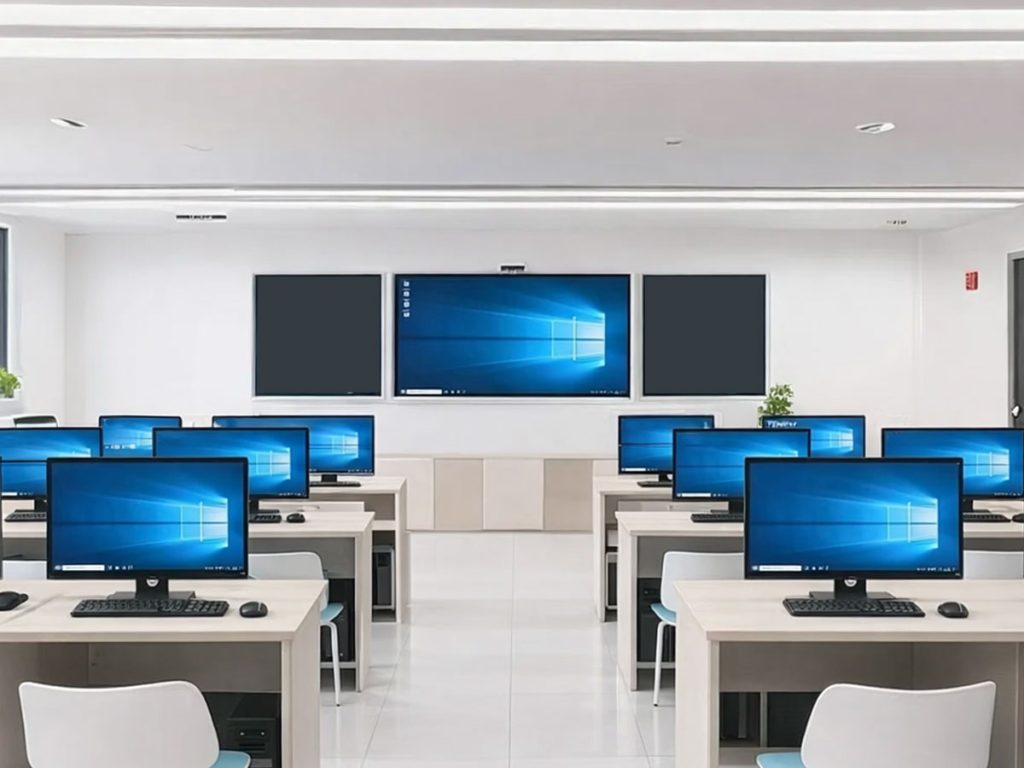
In collaborative tasking, students commonly assemble around one workstation to examine materials, exchange ideas, or work on shared assignments. There’s more desk space, more fluid group collaboration without the bulky towers.
AIO PCs are the preferred option in flexible and hybrid learning environments, not just in-person collaboration. With built-in cameras and microphones, teachers can easily set up their classrooms to livestream classes, have tutoring sessions across virtual channels, or connect students with distant guest speakers.
AIO PCs seamlessly interface with interactive displays and other smart classroom devices, making it easier for schools to implement a digital learning environment.
Simplifying IT Deployment & Maintenance
Plug-and-play deployment has greatly cut down on setup time, a crucial benefit for schools prepping hundreds of devices before each semester. With 30 standard desktop PCs, it might take two IT staff members a whole day to deploy. With AIO PCs, this process can often be completed within just hours.
Standardized AIO deployments not only speed up installation, but they also make long-term device management simpler. Many schools integrate AIO deployments with mobile device management platforms like Microsoft Intune or Google Admin Console so IT teams can push software updates, enforce configurations and monitor device health from one centralized dashboard—without physically accessing each individual machine on campus.
School computing needs can differ across each department, with libraries usually only needing systems for web browsing and document work while STEM labs or multimedia classrooms frequently requiring larger memory capacities and more storage.
Because of this discrepancy between their needs and those of each vendor’s deployment model, many institutions now favor providers who offer flexible hardware configurations rather than standard one-size-fits-all models.
What Schools Should Consider When Selecting an All-in-One PC

Not all all-in-one PCs are equal, and here are five practical considerations you should address before making your selection:
1. Select Appropriate Classroom Layout Designs
Each classroom environment may call for different device formats. Fixed computer labs like training centers tend to favor larger displays and stable desk setups; mobile learning spaces like STEM classrooms might prefer lighter wall-mounted designs that increase flexibility and save space.
2. Prioritize Anti-glare Displays for Long Learning Sessions
Glare from windows and ceiling lights can quickly become an impediment to learning in classrooms, yet anti-glare coatings can make a tangible difference to student comfort during extended sessions.
3. Examine Device Maintenance and Upgradability
Large scale education installations need devices that are straightforward to service. Before purchasing, ask suppliers how memory accesses work, whether the SSD can be replaced easily and what their warranty covers.
4. Consider Energy Efficiency for Long-term Savings
Intel N95/N100 CPUs offer an ideal balance between performance and low power consumption. A campus with 500 devices will save a lot of money on electricity every year.
5. Verify Software and Management Platform Compatibility
Prior to making a final purchasing decision, ensure the AIO platform you purchase is compatible with your institution’s LMS (e.g. Canvas, Moodle or Google Classroom), remote management tools and any specialist software required in STEM labs or vocational labs.
Ready to Modernize Your Campus Learning Environment?
As schools update their digital learning environments, hardware selection increasingly involves more than raw specifications alone. Long-term maintenance needs, deployment efficiency, classroom flexibility needs, energy consumption concerns and smart classroom compatibility all play key roles in overall value.
Tenfly provides AIO solutions tailored to support modern smart learning environments. Explore Tenfly’s education solutions for school labs and training centers, or contact the team for a hardware configuration tailored to your needs.
Contact Tenfly today for a free consultation.