
Are Dual Monitors Worth It for Office Productivity? How to Choose the Right Setup for Your Work

Daisy Li
Display Solutions & Product Technology Expert
Specializing in OEM/ODM smart display solutions from 21.5″ monitors to 110″ interactive flat panels, with expertise in product configuration, system integration, quality control, and bulk project delivery for global B2B markets.
Follow me:
If you spend a lot of your workday bouncing between spreadsheets, email threads, and reference pages, you’ve probably asked yourself if another monitor would really do anything. It’s a real game changer for certain people. For others, it adds hardware without adding much value. The difference is almost always one thing: how you work.
This article covers who usually gets the biggest benefit from a dual monitor setup, when a second monitor isn’t truly needed, and what to pay attention to when selecting office monitors.
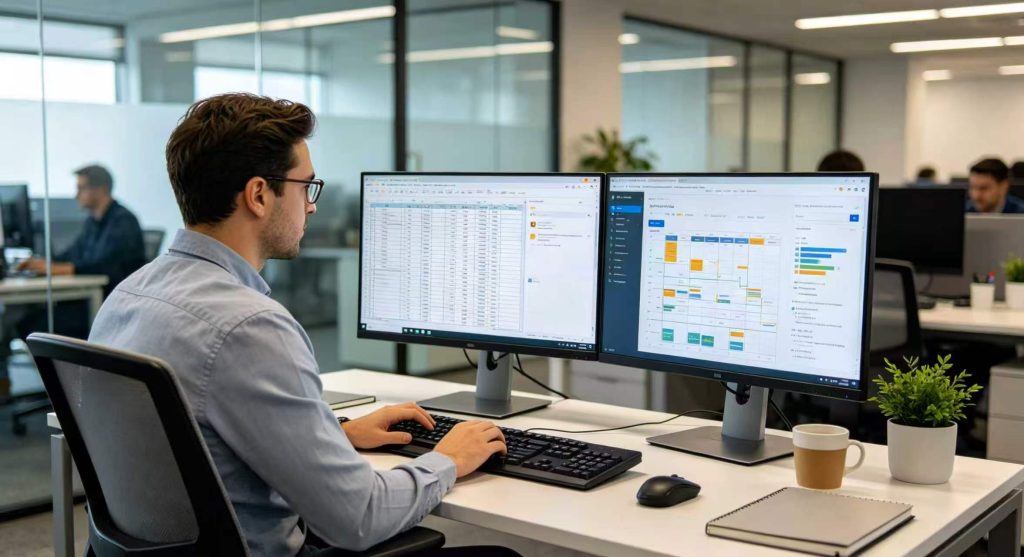
Do Dual Monitors Really Improve Productivity
Not everyone using a second monitor ends up working faster. Basically it lowers the irritation of juggling several programs at once. The main gain comes from the time you save by being able to view two windows side by side, instead of constantly jumping back and forth.
The practical gains tend to fall into a few categories:
- Less window switching: Work on one monitor while keeping a reference document open on the other, without disrupting focus.
- Better information visibility: Reference materials, dashboards, or chat windows remain visible throughout the day instead of being buried behind other applications.
- Fewer context interruptions: Repeatedly minimizing and reopening windows in little ways that sum up over a full workday impairs concentration.
Whether those gains represent anything for you depends on your real workflow. Not much value for someone who spends most of their day in a single application.
Which Office Jobs Benefit Most from a Dual Monitor Setup
The benefit of a second monitor varies by office role. The biggest difference is for jobs that require you to monitor several systems, cross reference data or manage multiple tools at the same time.
| Job Role | Typical Tasks | Dual Monitor Benefit |
| Finance & Accounting | Spreadsheets + ERP | High |
| Customer Support | CRM + Chat | High |
| Designers | Editing + Preview | High |
| Software Developers | Code + Documentation | High |
| Sales | Email + CRM | Medium |
| Administrative Staff | Documents + Meetings | Medium |
| Basic Data Entry | Single application | Low |
A practical everyday need for a customer support person is to have their CRM open on one monitor and be reacting to customers on another. For a developer, having documentation in eyesight next to the code editor avoids the continual back and forth that silently eats away at the day.
Not every office worker needs two monitors. The more your workflow depends on numerous open windows, the better the benefit tends to be.
When a Second Monitor Isn’t Necessary
If your job mostly stays in one program, you don’t have a lot of desk space and an additional monitor would clutter up your area more than make it convenient, or you just use a computer every so often and don’t spend lengthy periods of time multitasking, a second monitor definitely isn’t worth adding.
For many, the true decision isn’t if you should acquire multiple monitors, it’s when to make the switch. If you’re already working at full capacity and still losing time to window management, that’s a more reliable signal.

How to Choose Dual Monitors for Office Work
The next step, once you’ve figured out that a second monitor makes sense, is to hunt down the perfect one. The specs matter, but comfort and steady connectivity matter too, for anyone using these monitors every single day.
1. Match monitor Size and Resolution
For most desk work, a range of 24 to 27 inches feels right. Full HD (1920×1080) is enough for day-to-day work, but QHD (2560×1440) provides additional room for users working with heavy data or elaborate designs. However having both monitors the same size and resolution can make for a more seamless experience when shifting between monitors . It is not however mandatory.
2. Think About Comfort for Long Working Hours
Monitor comfort matters more than people often expect, especially for six-to-eight-hour workdays.
- IPS panel: Improved viewing angle and colour accuracy over TN counterparts
- Low blue light and flicker-free: Reduces eye strain for long hours of use
- Adjustable stand: Height and tilt adjustable features to assist reduce neck and shoulder discomfort over time
3. Pay Attention to Connectivity
Before you buy, just check what ports your computer actually has. Most of the configurations support HDMI and DisplayPort, although USB-C is gradually becoming beneficial for laptops, especially in hybrid work circumstances. If you want to use a monitor arm to clear up desk space, search for VESA compatibility.
| Consideration | Recommendation |
| monitor Size | 24 to 27 inches |
| Resolution | Full HD or QHD |
| Panel Type | IPS for office work |
| Refresh Rate | 60 to 100 Hz is sufficient |
| Adjustable Stand | Recommended |
| Thin Bezels | Better multi-monitor experience |
| Connectivity | HDMI + DP or USB-C |
| Mounting | VESA compatible preferred |
Choosing a Monitor That Fits Your Daily Workflow
The right dual monitor setup is the one that matches how you actually work, not the one that looks the best on paper, or whatever.
For Individual Office Users
Comfort and budget tend to be the priority. In most office situations, a pair of 24-inch or 27-inch monitors tends to do the job really well. And if desk space is limited you’ll often prefer two 24-inch monitors than going bigger just for the numbers.
For Remote and Hybrid Workers
Video calls combined with document collaboration are a daily reality for most hybrid setups. A monitor with USB-C connectivity simplifies cable management and pairs well with modern laptops through a single connection. A height-adjustable stand also becomes more important when your home workspace doesn’t come with the ergonomic setup of a standard office.
For Business and Enterprise Deployment
Regarding scale, uniformity beats individual preferences. Standardizing on one monitor model also makes IT support easier and bulk purchases more economical. Compatibility difficulties with new team members are also minimized. Worth checking if the ports will work with your existing hardware before placing a big order.

If you’re comparing monitor options, try to find models with a basically steady size line, ergonomic stands, and the exact connectivity your devices actually need. Tenfly provides a range of office monitors designed for these common workplace needs. In the end, the decision should match your real workflow, and of course the physical space you have.
Before You Buy, Ask Yourself These Questions
Before you buy, a brief checklist will help you avoid second-guessing your selection later:
Two monitors aren’t always necessary. Office users who often deal with many windows, data sources, documents or collaboration tools, tend to find that two monitors lead to a smoother and more efficient workday. It’s not about adding a second monitor, it’s about getting the correct size, resolution and connectivity.
Ready to explore options for your office or team? Browse Tenfly‘s monitor lineup to find a configuration that fits your workspace.
Contact Tenfly today for a free consultation.