
Education Monitor Specifications: 5 Things You Must Check
Finding the right display for a classroom or computer lab isn’t like picking a monitor for a home office.
If you’re handling procurement for a school, district, or educational institution, you already know that a wrong choice can mean eyestrain complaints, unexpected repair costs, and frustrated teachers.
The good news? Once you know what to look for, selecting education monitors becomes straightforward. Below are five critical aspects to check before you buy, followed by a quick-reference table to match different classroom scenarios.
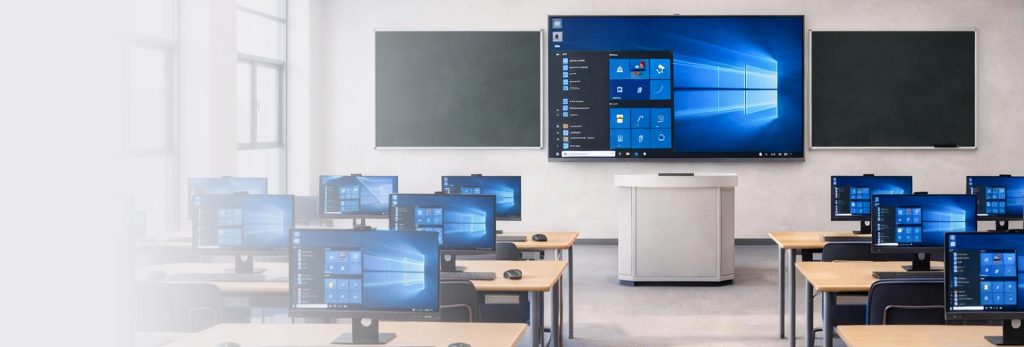
1. Display Quality and Size: Balance Clarity with Practicality
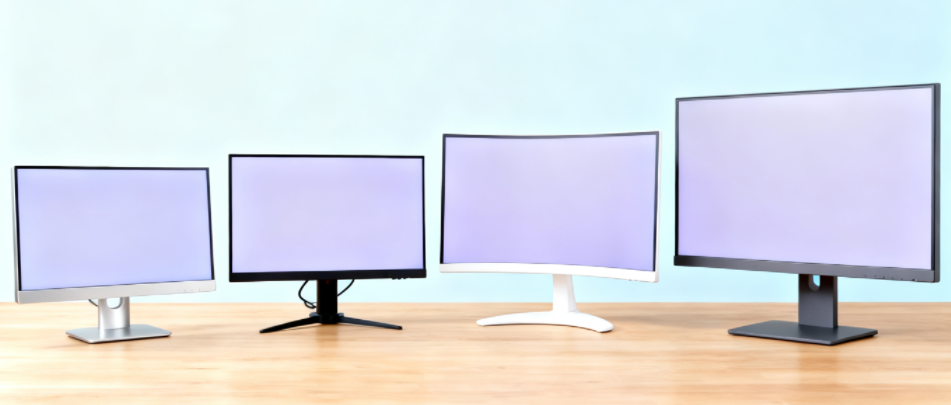
Resolution and screen size are usually the first things people notice—but for education, bigger isn’t always better, and higher resolution doesn’t always mean a better learning experience.
For most standard classrooms and computer labs, a 24-inch to 27-inch monitor with 1920×1080 (Full HD) resolution hits the sweet spot. It offers enough screen real estate for students to view documents, educational software, or coding environments without requiring them to squint.
Where higher resolution makes sense is in specialized scenarios. Art and design departments, for instance, benefit from 4K monitors (3840×2160) that let architecture or graphic design students see fine details. Teachers who spend hours preparing detailed lesson materials or grading assignments also appreciate the extra clarity.
Refresh rate is another spec that often gets overlooked in education procurement. While 60Hz used to be the standard, more schools are now choosing monitors with 100Hz or higher. The reason is simple: scrolling through long documents, moving between browser tabs, or playing educational videos feels noticeably smoother. For students, that reduced motion blur can actually help with focus during fast-paced lessons.
When selecting education monitors, prioritize models with anti-glare coatings. Classrooms have overhead lights and windows—a glossy screen turns into a mirror and makes it hard for students sitting at an angle to see clearly.
2. Eye Health Technology: A Non–Negotiable Feature
Students and teachers spend countless hours in front of screens. Eye strain isn’t just a comfort issue—it affects attention spans, learning outcomes, and long-term well-being.
Two certifications matter most in this category: flicker–free and low blue light.
Traditional monitors use pulse-width modulation to control brightness, which creates invisible flickering. Over time, that flicker causes eye fatigue, headaches, and even reduced concentration. Flicker–free technology eliminates this by using a constant current to control brightness.
Low blue light reduces the portion of the spectrum that’s known to disrupt sleep cycles and cause eye strain. The gold standard here is TÜV Rheinland certification—an independent third-party verification that the monitor meets stringent eye-comfort criteria.
When you see this certification, you can trust that the display has been tested for both flicker and blue light emission.
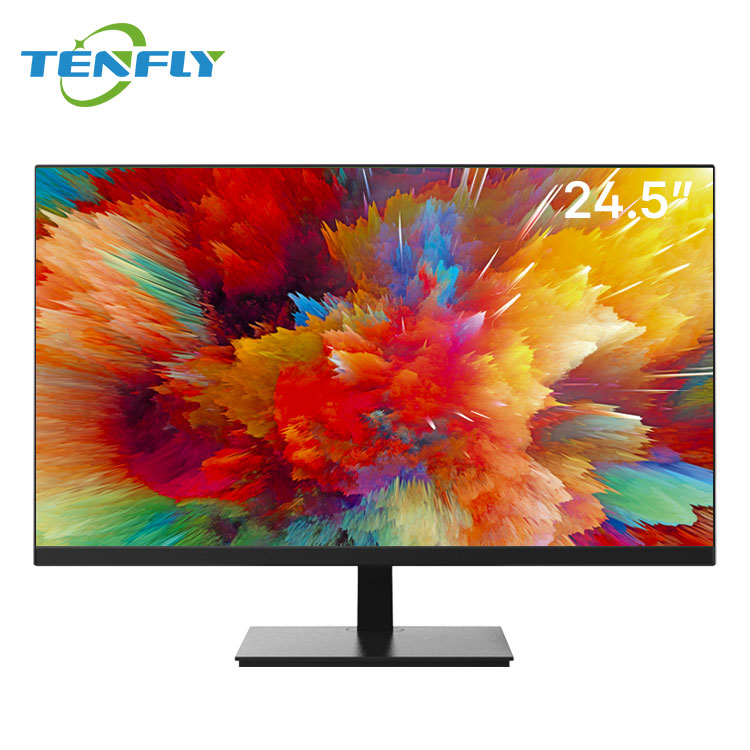
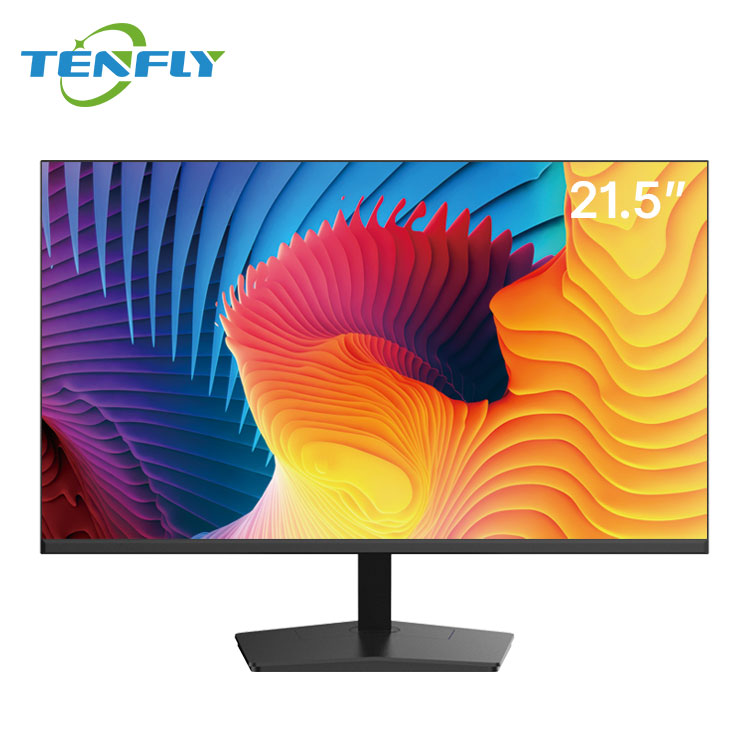
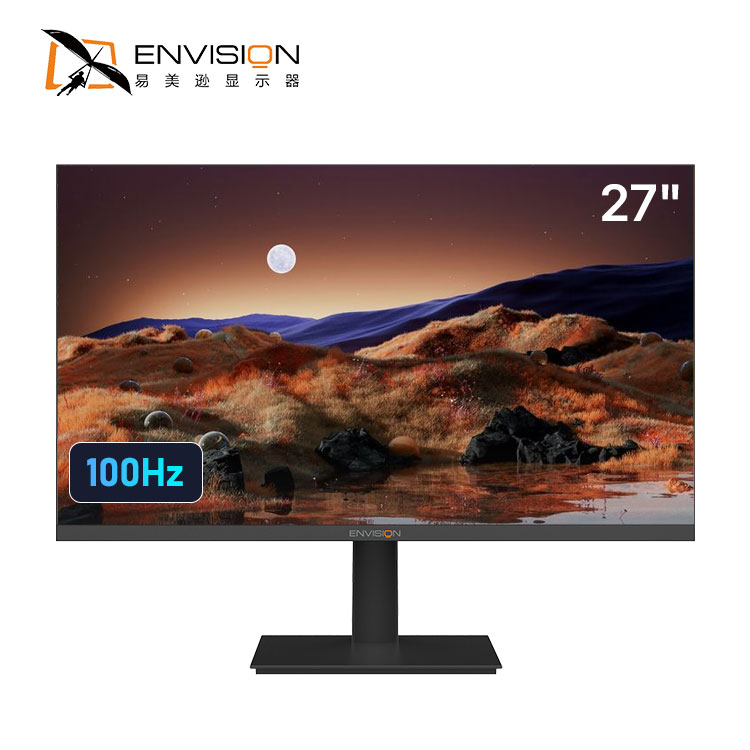
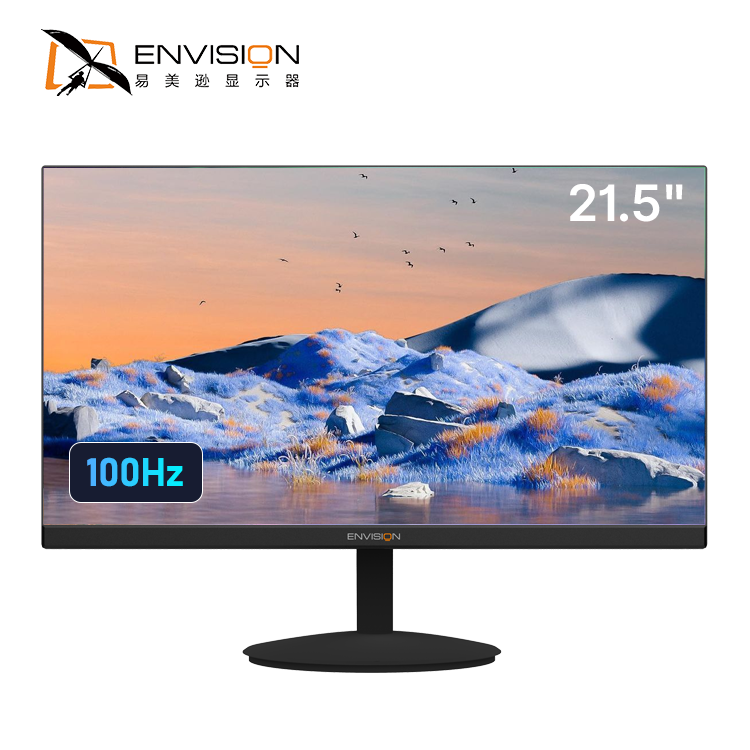
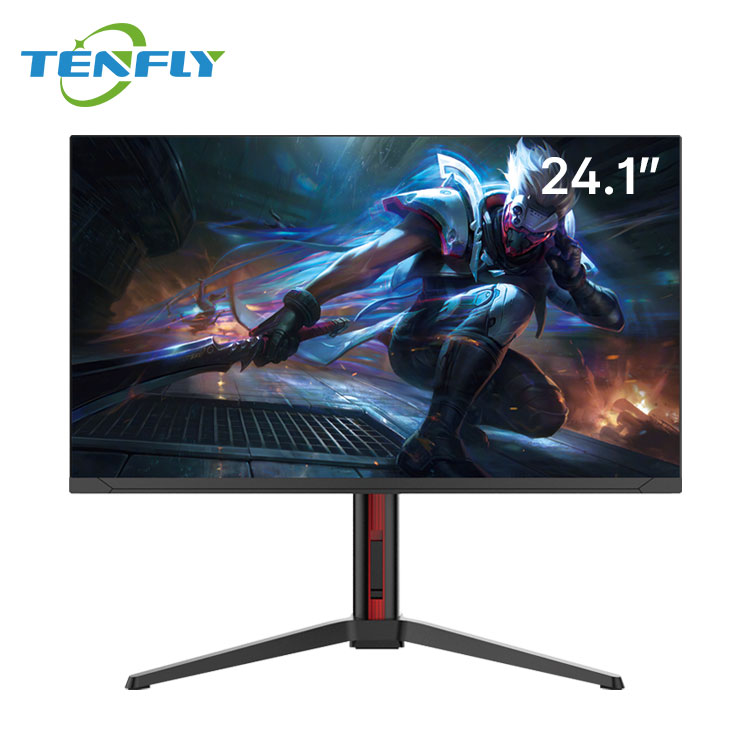
Tenfly’s education-focused monitors, including the MNXL25F1 model, come equipped with low blue light and flicker-free technology to reduce eye strain during extended classroom use. For institutions looking for broader options, the entire Envision monitor series—manufactured and distributed by Tenfly—features low-blue-light and flicker-free certification across all models.
Low blue light monitors:
Brightness is another consideration. While consumer monitors sometimes push for ultra-high brightness numbers, classrooms don’t need that. A monitor rated at 350 nits is perfectly sufficient for well-lit rooms, and anything above 400 nits can actually cause glare issues if not paired with proper anti-glare treatment.
3. Connectivity and Compatibility: Future–Proof Your Investment
This is where many education procurement decisions go wrong. A monitor might have a beautiful screen, but if it doesn’t connect to your existing devices, you’ll face endless compatibility headaches.
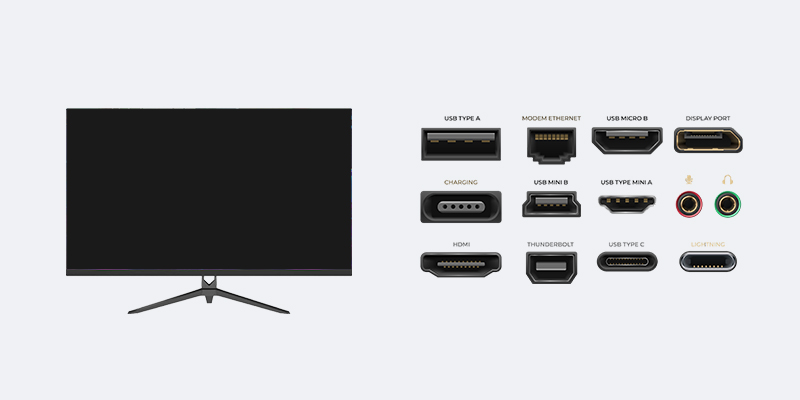
At a minimum, education monitors should include HDMI and VGA ports.
Why VGA? Because many schools still have older desktops or thin clients in computer labs that only support analog connections. Having both options means you can mix new and old equipment without needing to buy expensive adapters for every workstation.
For teacher workstations and modern labs, look for monitors with USB–C connectivity. A USB-C port can carry video, data, and power through a single cable. Teachers who bring their laptops to school can simply plug in one cable to get a large display while charging their device. It keeps desks cleaner and saves time switching between devices.
Multiple HDMI ports are also worth checking—especially if teachers frequently connect document cameras, external streaming devices, or guest laptops during lessons.
For readers looking for monitors with strong connectivity options, the Tenfly monitor series offers models with HDMI, VGA, and USB-C configurations suitable for both classroom labs and teacher workstations.
4. Durability and Warranty: Plan for Real–World Use
A classroom monitor isn’t sitting untouched on a desk. It gets bumped, touched, and used hour after hour.
Build quality matters. Look for monitors with sturdy stands that resist tipping. If you’re equipping a computer lab where students frequently adjust screen angles, consider models with reinforced hinge mechanisms.
Warranty terms tell you how confident the manufacturer is in their product.
For education procurement, a one–year warranty should be your baseline.
Check whether the warranty covers:
- Dead pixels (some policies only cover if there are more than a certain number)
- Backlight failures
- Physical damage (though accidental damage coverage varies)
Tenfly offers a 1-year global warranty with 24/7 technical support and spare parts availability. For bulk education orders, Tenfly provides tailored after-sales support. Contact our B2B team to confirm warranty terms specific to your deployment scale.
5. Smart Classroom Features: When a Monitor Needs to Do More
Traditional monitors are great for computer labs and teacher workstations. But modern classrooms increasingly need interactive displays that combine the functions of a monitor, whiteboard, and collaboration tool.
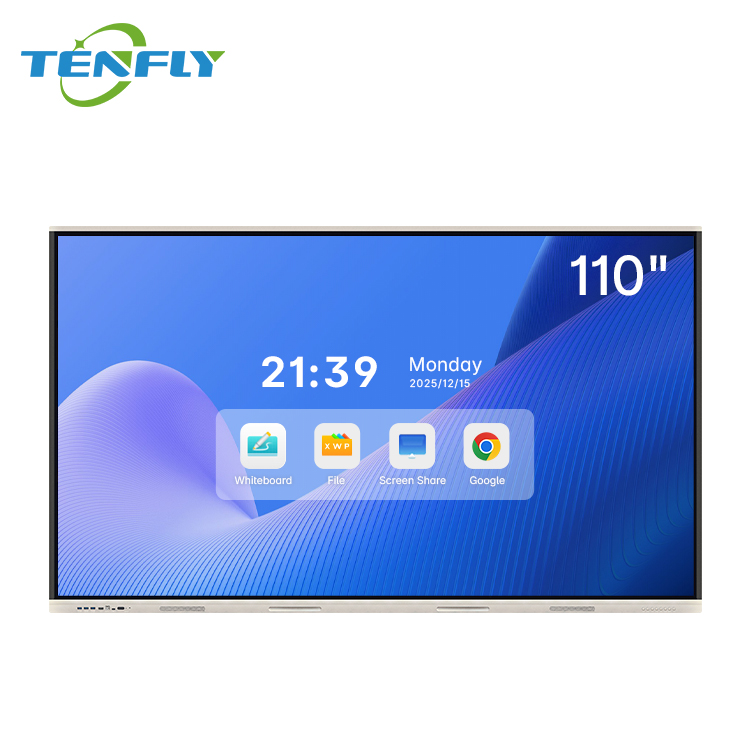
If you’re outfitting a smart classroom, you’re probably looking at interactive flat panels (IFPs) rather than standard monitors. These are typically 75–inch or 86–inch displays with built-in touch capabilities.
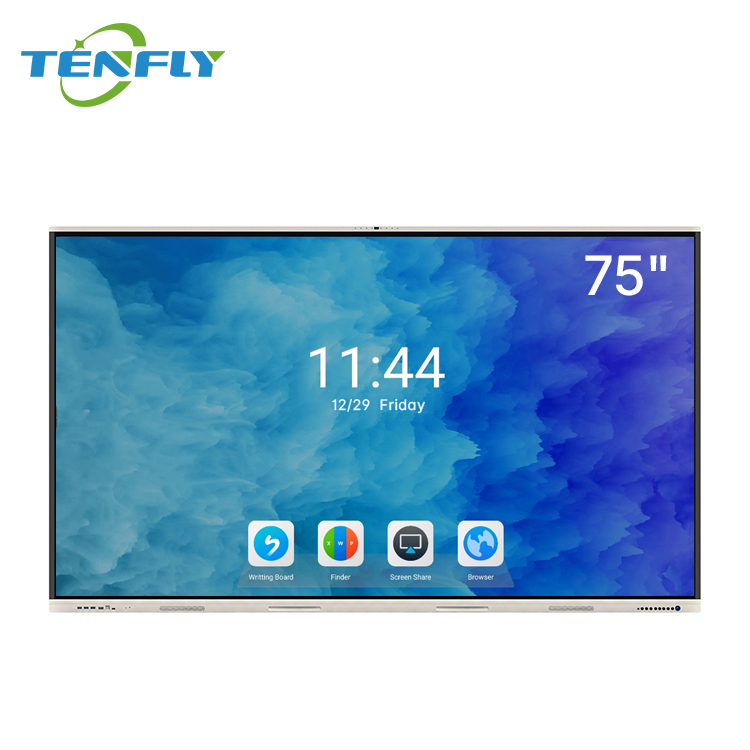
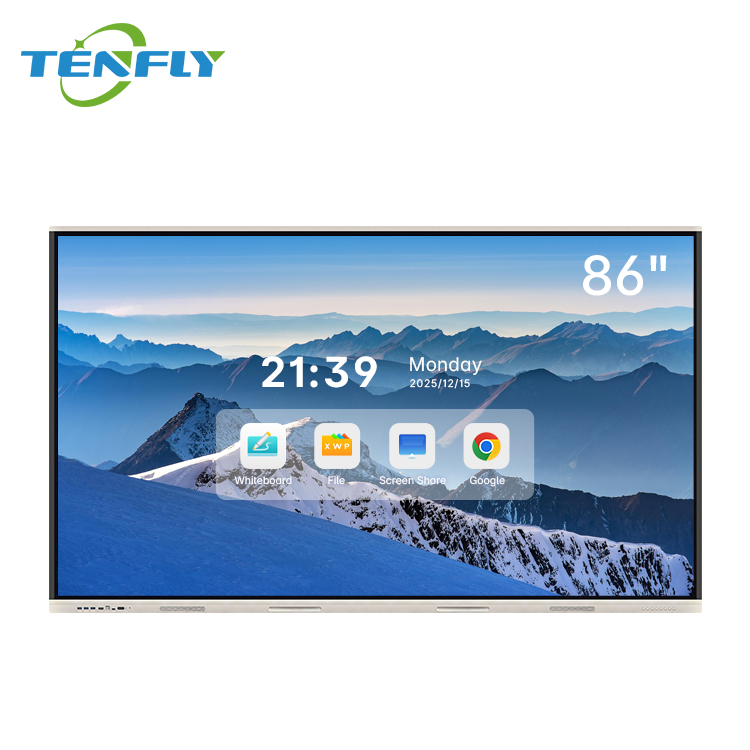
Key features to evaluate:
- Touch technology: Most IFPs use infrared touch, which supports 20 or more simultaneous touch points. That allows multiple students to interact with the screen at once—perfect for group activities.
- Operating system: Look for dual–system models that run both Android (for quick access to apps and cloud services) and Windows (via an OPS computer module for running full educational software).
- Built–in tools: Quality smart classroom screens include 4K cameras, microphone arrays, and front–facing speakers. These make hybrid teaching seamless—remote students can hear clearly, and in-room students can see the lesson without extra equipment.
Anti–glare treatment is even more critical on large–format displays. A 75-inch screen with a glossy finish will reflect classroom lights and windows, making content hard to read from side angles. Matte, anti-reflective coatings are essential for readability across the whole room.
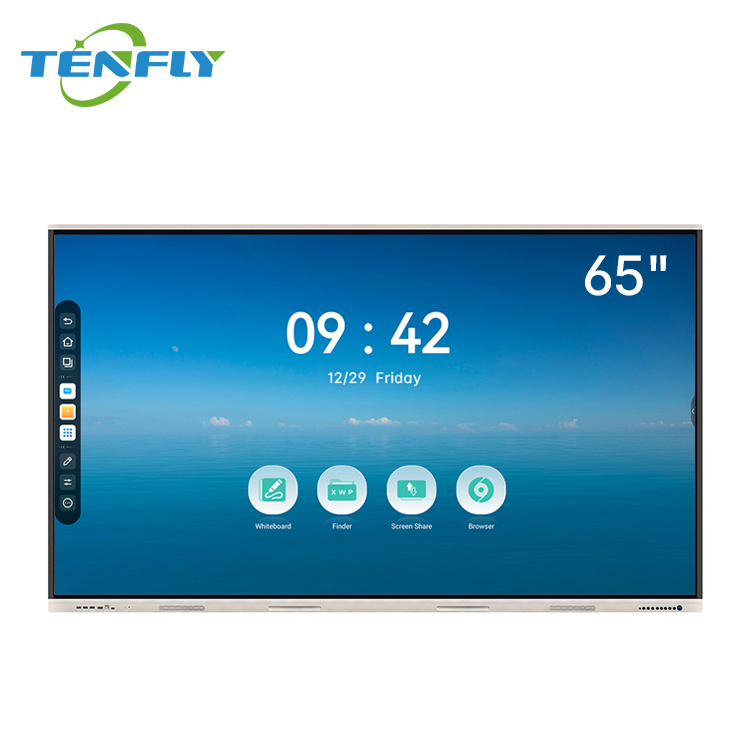
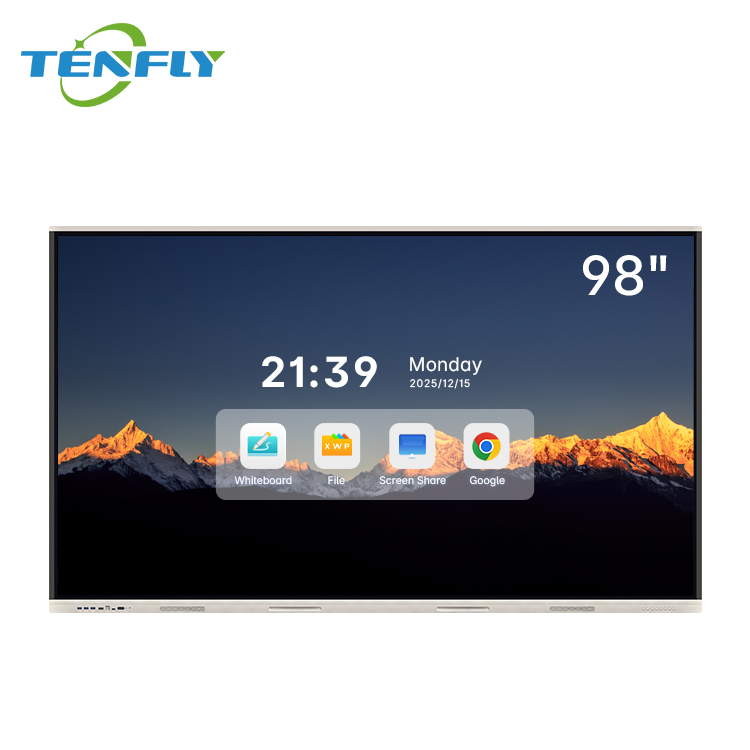
For schools ready to upgrade to interactive teaching, Tenfly’s interactive display series combines large-format touch screens with classroom-focused features.

Quick Reference: Matching Monitors to Education Scenarios
Not every classroom needs the same type of display. Here’s a practical breakdown to help you match specifications to real-world use cases.
| Scenario | Recommended Specifications | Key Considerations |
| Computer Labs / Student Workstations | 24-27 inch, 1080p, ≥100Hz refresh rate, flicker-free + low blue light, HDMI + VGA ports, at least 1-year warranty | Durability and cost-effectiveness are top priorities. Anti-glare screens are essential for labs with overhead lighting. |
| Teacher Workstations / Administrative Offices | 27-32 inch, 4K resolution, USB-C connectivity, ergonomic stand (height-adjustable), high color accuracy (≥95% DCI-P3 if design work is involved) | Teachers spend long hours grading and preparing materials. Ergonomic adjustments reduce physical strain, and USB-C simplifies laptop connections. |
| Smart Classrooms / Interactive Teaching | 75-86 inch interactive flat panel, 4K UHD, anti-glare coating, ≥20-point touch, Android + Windows (OPS) dual system, built-in camera and mic | This is a major investment—prioritize models with comprehensive warranties and demo options before full deployment. |

Ready to Explore Options for Your School?
Choosing education monitors isn’t just about specs on a datasheet. It’s about creating an environment where students can focus without eye fatigue, teachers can work efficiently, and your IT team doesn’t spend every week handling repairs.
Start with the five checks we covered:
- Display quality that suits the actual use case
- Eye health features with independent certifications
- Connectivity that works with both old and new equipment
- Durability and warranty that protect your investment
- Smart features if you’re moving toward interactive classrooms
Then use the scenario table to narrow down your options based on where the monitors will actually be used.
If you’re currently planning a lab refresh, equipping a new smart classroom, or simply looking to upgrade teacher workstations, Tenfly offers a full range of education-focused displays and interactive solutions.
Browse the product lineup to see models that match the specifications discussed above, or reach out to discuss custom configurations for your institution.